
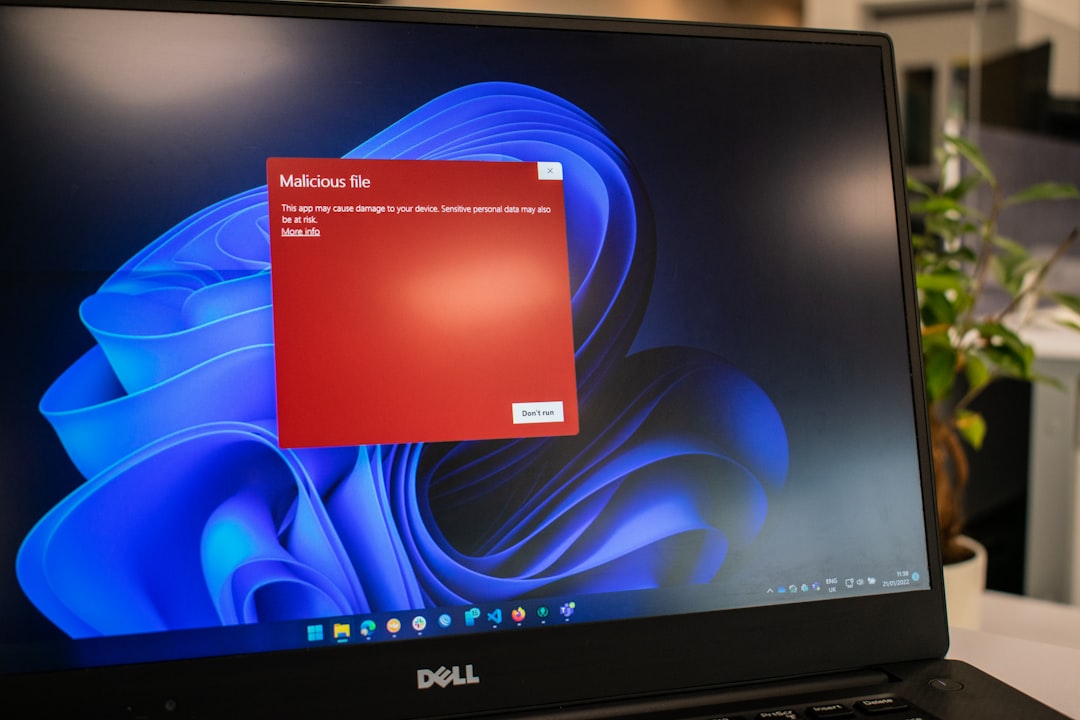
Clipboard errors are annoying. But when Deskflow starts throwing a clipboard corruption error, it can feel like your keyboard and mouse are working against you. Copy. Paste. Crash. Repeat. If that sounds familiar, you are not alone. The good news? This issue is common. And it is fixable.
TLDR: Deskflow clipboard corruption errors usually happen because of version mismatches, damaged clipboard data, security restrictions, network glitches, or conflicting clipboard managers. The fix often involves restarting services, clearing the clipboard, updating Deskflow, or adjusting firewall settings. In stubborn cases, resetting the clipboard sync feature solves it fast. Most fixes take under 10 minutes.
Let’s break it down in plain English. No jargon storms. No mystery errors. Just simple steps that work.
Contents of Post
What Is the Deskflow Clipboard Corruption Error?
Deskflow lets you share your mouse, keyboard, and clipboard between computers. It feels like magic. You copy text on one machine. You paste it on another. Done.
But sometimes, instead of that smooth experience, you see error messages like:
- “Clipboard data corrupted”
- “Failed to deserialize clipboard”
- “Clipboard sync error”
That means Deskflow cannot properly understand the data being sent between devices. Think of it like receiving a letter written in a language you cannot decode.
When that happens, copying and pasting across devices stops working. Sometimes Deskflow crashes. Sometimes it just silently fails.
Common Causes of Clipboard Corruption
Before fixing anything, it helps to know why it is happening.
1. Version Mismatch
If one computer runs Deskflow version 1.14 and the other runs 1.10, trouble can start. Different versions may handle clipboard data differently.
2. Large or Complex Clipboard Data
Copying plain text is easy. Copying large images or formatted data is harder. Huge files stress the sync process.
3. Third Party Clipboard Managers
Apps like clipboard history tools sometimes interfere. Two apps fighting over clipboard control never ends well.
4. Firewall or Security Restrictions
Some security tools block clipboard sharing traffic. Deskflow may be connected, but the data stream gets interrupted.
5. Network Instability
If your WiFi drops even briefly, transferred clipboard data may get corrupted mid stream.
Now comes the good part.
5 Fixes That Actually Work
Fix #1: Restart Deskflow on All Devices
It sounds simple. That is because it is.
Close Deskflow completely on every connected machine. Do not just minimize it. Fully exit the application. Then reopen it.
This clears temporary memory glitches. It also resets clipboard sync channels.
Quick steps:
- Exit Deskflow on all machines
- Wait 10 seconds
- Reopen the server first
- Then reconnect client machines
Test copy and paste again.
Many times, this alone fixes the issue.
Fix #2: Make Sure All Devices Use the Same Version
This is one of the biggest causes.
Check the version number in the Deskflow “About” section on each computer. They must match exactly.
If they do not:
- Download the latest version
- Install it on every device
- Restart all systems
Running identical versions ensures both machines speak the same clipboard language.
No translation errors. No corruption.
Fix #3: Clear the Clipboard Buffer
Sometimes the clipboard itself is the problem. It may be holding corrupted or oversized data.
Here is how to safely reset it.
On Windows:
- Press Windows + V
- Open clipboard history
- Click “Clear All”
On macOS:
- Open Terminal
- Type:
pbcopy < /dev/null - Press Enter
Now restart Deskflow again.
This wipes problematic clipboard content. Fresh start. Clean sync.
Fix #4: Disable Third Party Clipboard Tools
If you use clipboard manager software, test without it.
Common examples include:
- Clipboard history enhancers
- Productivity copy managers
- Macro tools with clipboard tracking
Disable them temporarily. Then test Deskflow.
If the error disappears, you found the conflict.
You can either:
- Keep the tool disabled
- Look for a Deskflow compatibility setting
- Switch to a simpler clipboard manager
Two clipboard masters rarely cooperate peacefully.
Fix #5: Adjust Firewall and Network Settings
Deskflow relies on stable network communication.
If your firewall blocks data packets, clipboard sync may partially transmit. That leads to corruption.
What to check:
- Allow Deskflow in firewall permissions
- Allow private network access
- Disable aggressive antivirus network scanning temporarily
Also try using a wired Ethernet connection instead of WiFi. This reduces packet loss.
Stable network. Stable clipboard.
Bonus Fix: Disable Clipboard Sharing Temporarily
If you are in the middle of urgent work, you can simply disable clipboard synchronization in Deskflow settings.
You will still share keyboard and mouse. Only clipboard sync stops.
This prevents crashes while you troubleshoot later.
It is not permanent. But it keeps you productive.
Advanced Troubleshooting (If Nothing Else Works)
Still seeing the error? Try these deeper fixes.
1. Reset Deskflow Configuration
Sometimes the config file becomes corrupted.
- Backup your configuration
- Delete the existing config file
- Recreate your server and client layout
This removes hidden corruption in settings.
2. Reduce Clipboard Size Limits
If you frequently copy large images or formatted documents, avoid doing so across devices.
Test with plain text only. If plain text works but images fail, size is likely the issue.
3. Check Logs for Error Details
Enable debug logging in Deskflow settings.
Look for messages mentioning:
- Serialization failures
- Packet truncation
- Stream interruption
Logs often tell you exactly what broke.
How to Prevent Clipboard Corruption in the Future
Prevention beats repair every time.
Follow these habits:
- Keep all Deskflow installations updated
- Avoid copying extremely large files between systems
- Use stable wired connections when possible
- Limit additional clipboard management software
- Restart Deskflow occasionally to refresh sessions
Small maintenance steps. Big reliability gains.
Why This Error Feels Worse Than It Is
Clipboard corruption sounds dramatic.
But in most cases, nothing is actually damaged. Your files are safe. Your system is safe.
It is usually just a failed data translation during transfer.
Like copying a sentence and losing a few letters in transit.
Annoying. Yes. Catastrophic. No.
Final Thoughts
The Deskflow clipboard corruption error is frustrating. But it is rarely complicated.
Most cases boil down to:
- Mismatched versions
- Clipboard overload
- Security interference
- Software conflicts
Start simple. Restart everything. Update everything. Clear the clipboard. Then move to deeper fixes only if needed.
Within minutes, your copy and paste magic should return.
And when it does, it feels pretty great.
Because smooth workflow is not just about speed.
It is about not thinking about the tools at all.
Fix it once. Prevent it next time. And enjoy a clipboard that behaves exactly as it should.