
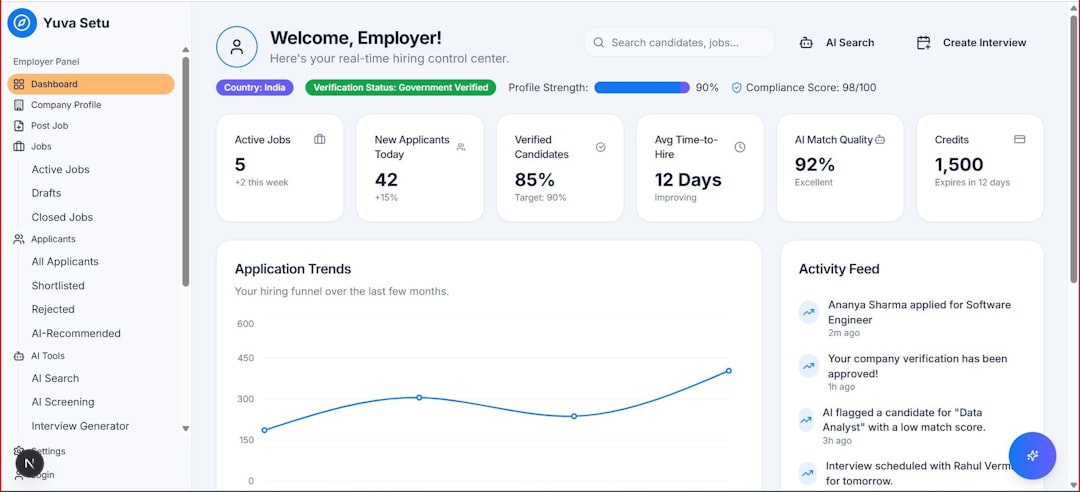
Infographics have become a practical way to explain complex information quickly, whether you are preparing a business report, teaching a class, presenting research, or publishing content online. The challenge is that many people who need infographics are not trained designers. Fortunately, modern infographic software has become much more accessible, offering templates, drag and drop editing, charts, icons, and brand controls that help non-designers create clear, professional visuals with confidence.
TLDR: User-friendly infographic software helps non-designers turn data, processes, and ideas into polished visuals without needing advanced design skills. The best tools offer templates, simple editing, chart features, accessible export options, and enough customization to keep work professional. When choosing a platform, focus on ease of use, data handling, collaboration, and whether the final results match your audience and brand standards.
Contents of Post
Why Infographic Software Matters for Non-Designers
Good visual communication is no longer limited to design departments. Small business owners, marketers, educators, consultants, nonprofit teams, and analysts are often expected to present information in a way that is both attractive and easy to understand. A dense spreadsheet or a long written explanation may contain valuable insights, but it can fail to engage an audience. A well-structured infographic, by contrast, can highlight the most important points and make them easier to remember.
For non-designers, the main value of infographic software is not simply that it makes things look better. Its real value is that it provides structure. Templates, grids, font pairings, icon libraries, and color palettes reduce the number of design decisions a user must make from scratch. This guidance helps prevent common mistakes such as overcrowded layouts, inconsistent styling, unreadable text, or confusing visual hierarchy.
User-friendly does not mean simplistic. The best infographic platforms balance simplicity with enough control to produce credible, polished work. A serious business presentation, for example, may require accurate charts, brand colors, downloadable high-resolution files, and collaboration features. A classroom handout may require readability, accessibility, and easy printing. The right tool depends on the context, but the goal remains the same: communicate information clearly.
Key Features That Make Infographic Tools Easy to Use
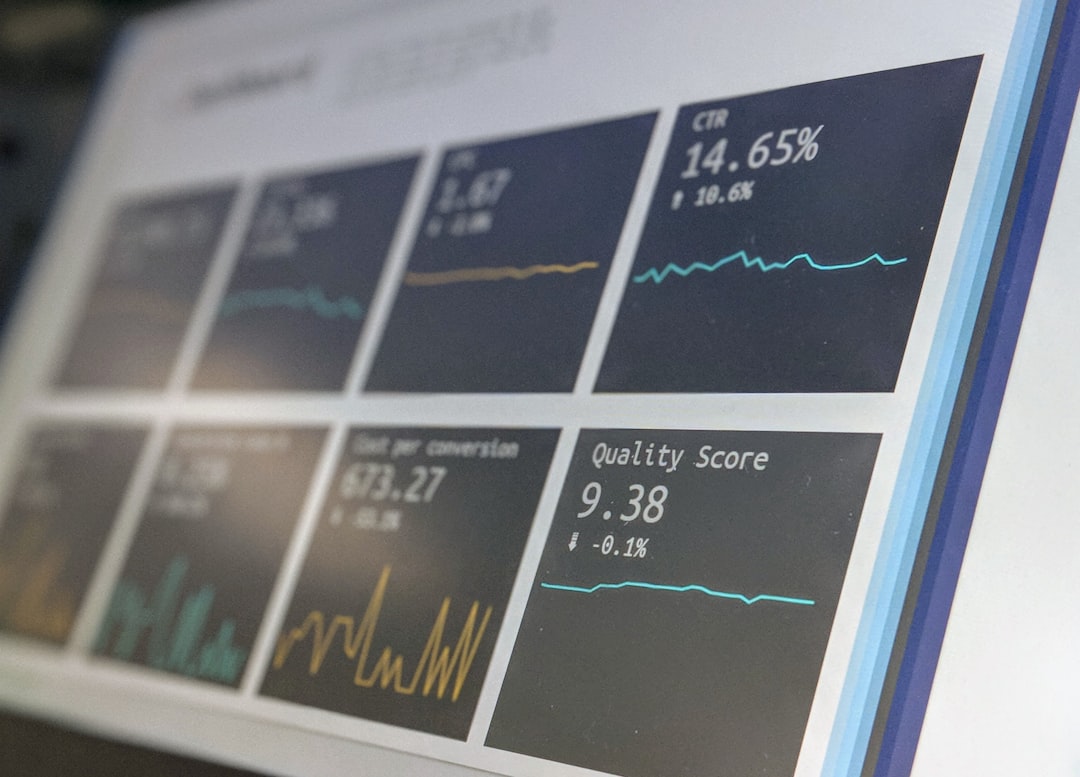
When evaluating infographic software, non-designers should look beyond attractive sample templates. A tool may look impressive on its homepage but still be difficult to use in practice. The following features usually make the biggest difference.
- Professional templates: Templates provide a reliable starting point for reports, timelines, comparisons, process diagrams, resumes, social posts, and presentations.
- Drag and drop editing: Simple object movement, resizing, grouping, and alignment help users build layouts without learning complex design software.
- Chart and data tools: Built-in bar charts, pie charts, line graphs, maps, and data import options make it easier to visualize numbers accurately.
- Icon and illustration libraries: Ready-made visual assets help explain concepts quickly and reduce the need to source graphics elsewhere.
- Brand controls: The ability to save logos, fonts, and colors supports consistency across teams and repeated projects.
- Export flexibility: Common output formats such as PNG, PDF, SVG, and presentation files are important for sharing, printing, and embedding.
- Collaboration tools: Comments, shared folders, version history, and permission controls are useful for teams that review or approve content.
Non-designers should also consider whether the software includes practical safeguards. Alignment guides, automatic spacing, locked templates, and recommended color combinations can quietly improve the final result. These features may seem minor, but they often separate amateur-looking visuals from professional ones.
What “User-Friendly” Really Means
A user-friendly infographic platform should reduce friction at every stage of the process. This begins with finding the right format. For example, a user should be able to choose a template for a statistical report, a step-by-step process, a comparison chart, or a timeline without starting from a blank canvas. The software should then make it easy to replace sample text, edit colors, upload data, and export the finished file.
Clarity is especially important for non-designers. Menus should be understandable, not hidden behind technical design terms. Editing text, changing icons, adjusting chart values, and resizing sections should feel straightforward. If a person needs to watch hours of tutorials before producing a basic infographic, the tool is probably not user-friendly enough for general business or educational use.
At the same time, ease of use should not come at the cost of credibility. Infographics are often used to support decisions, explain research, or influence public understanding. Therefore, software should allow users to present data responsibly. This includes accurate chart scaling, readable labels, clear legends, and enough space for sources or methodology notes where appropriate.
Popular Types of Infographics Non-Designers Can Create
Different communication goals require different infographic formats. A good software platform should support several common types, including:
- Statistical infographics: These focus on numbers, trends, survey findings, or performance metrics. They often include charts, percentages, and short explanatory notes.
- Process infographics: These explain a sequence of steps, such as onboarding, project workflows, customer journeys, or safety procedures.
- Comparison infographics: These help audiences evaluate options, features, pros and cons, pricing tiers, or before and after scenarios.
- Timeline infographics: These present events, milestones, product roadmaps, historical developments, or project schedules.
- Educational infographics: These simplify concepts for students, employees, clients, or the general public.
- Report summaries: These condense longer documents into a visual overview suitable for executives, stakeholders, or online audiences.
Choosing the right format is a strategic decision. A timeline is not ideal for showing proportions, and a pie chart is not suitable for every data set. User-friendly software can help by offering templates organized by purpose, but users still need to match the structure to the message.
Design Principles Non-Designers Should Follow
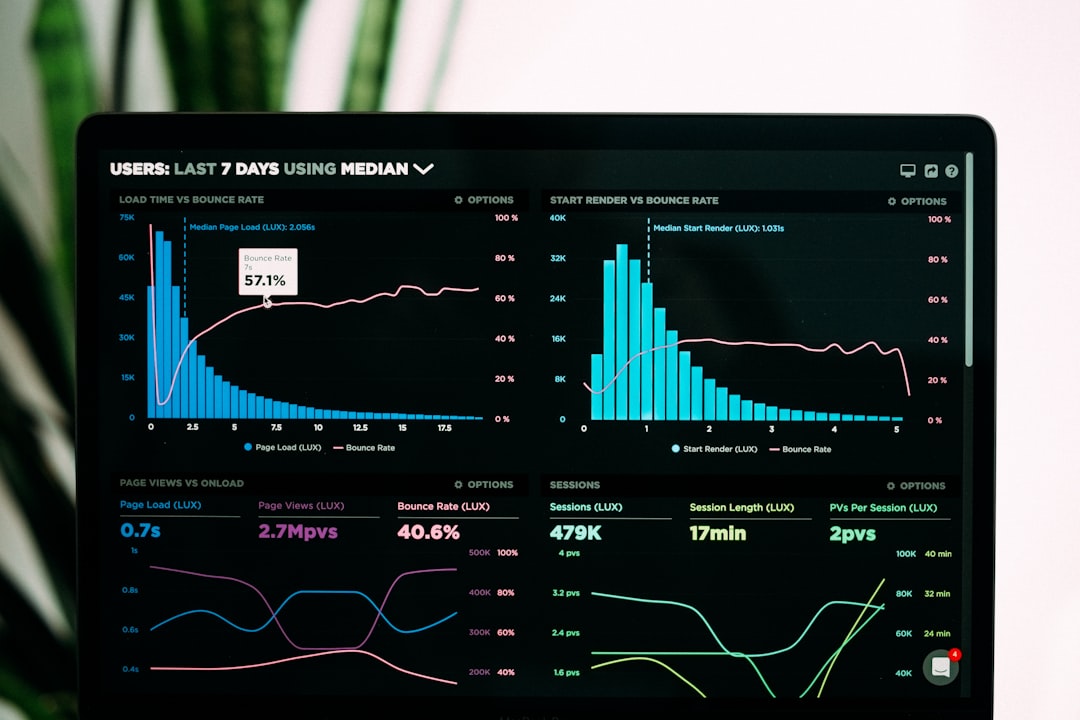
Even with excellent software, some basic design judgment is necessary. Fortunately, the most important principles are easy to apply.
First, keep the message focused. An infographic should not attempt to say everything. It should answer a clear question or explain a specific idea. If too many facts compete for attention, the audience may remember none of them.
Second, build a clear visual hierarchy. The most important information should be the most visible. Use larger headings, stronger contrast, and strategic spacing to guide the reader from one section to the next. Avoid making every element the same size or weight.
Third, use color with restraint. A limited palette usually looks more professional than a large collection of unrelated colors. Color should help organize information, highlight key points, or distinguish categories. It should not be used merely for decoration.
Fourth, choose readable fonts. Decorative fonts may look interesting, but they often reduce clarity. For most professional infographics, simple sans serif or serif fonts are safer. Limit the design to two or three font styles at most.
Finally, leave enough white space. Empty space is not wasted space. It helps separate sections, improves readability, and gives the design a more polished appearance. Crowding every corner with text, icons, and charts is one of the most common non-designer mistakes.
Data Accuracy and Trustworthiness
A trustworthy infographic depends on more than visual appeal. It must represent information honestly. Non-designers should be cautious when using charts, icons, or pictograms because visual choices can unintentionally distort meaning. For example, a bar chart that does not start at zero may exaggerate differences. A 3D chart may make values harder to compare. Oversized icons may create a stronger impression than the data supports.
Reliable infographic software should make it easy to label charts, edit axes, add source notes, and maintain proportional visuals. If the infographic includes research findings, financial numbers, health information, or public policy data, accuracy is essential. A visually attractive but misleading infographic can damage credibility.
It is also wise to include sources when presenting external data. A small line of text at the bottom of the design can cite reports, surveys, internal data sets, or publication dates. This practice signals professionalism and allows readers to understand where the information came from.
Collaboration and Workflow Considerations
Many infographics are not created by one person alone. A marketing manager may draft the content, an analyst may verify the data, a supervisor may approve the messaging, and a communications team may publish the final version. For this reason, collaboration features can be just as important as design features.
Useful workflow capabilities include shared editing, comments, approval permissions, and version history. These tools reduce confusion and help teams avoid sending multiple file versions by email. For organizations with strict brand requirements, template locking and brand asset libraries can keep designs consistent while still allowing non-designers to create materials efficiently.
Security should also be considered, especially when infographics contain internal metrics, financial data, customer information, or confidential plans. Before adopting any software, organizations should review privacy policies, user permissions, and data storage practices.
How to Choose the Right Infographic Software
The best choice depends on your goals, skill level, budget, and publishing needs. Before committing to a platform, it is helpful to test it with a real project rather than relying only on promotional examples. Create a simple infographic from your own data or content and evaluate the experience from start to finish.
Consider asking the following questions:
- Can I create a usable infographic within a reasonable amount of time?
- Are the templates professional enough for my audience?
- Can I customize colors, fonts, charts, and layouts without difficulty?
- Does the software support the export formats I need?
- Can I add sources, notes, or disclaimers when necessary?
- Is collaboration simple for my team or organization?
- Does the pricing make sense for how often I will use it?
Free plans can be useful for occasional projects, but they may include limitations such as watermarks, restricted exports, fewer templates, or limited brand controls. Paid plans are often worthwhile for regular professional use, particularly when high-resolution downloads, team features, or advanced data tools are required.

Common Mistakes to Avoid
Non-designers can produce strong infographic work by avoiding a few predictable problems. One common error is including too much text. Infographics should be concise; if a paragraph is necessary, it may be better presented in a report or article. Another mistake is using icons only because they look attractive, rather than because they clarify meaning.
Inconsistent styling is also a frequent issue. Mixing too many line weights, icon styles, colors, and fonts can make the design feel unprofessional. Users should rely on the template’s original system unless they have a clear reason to change it.
Finally, many infographics fail because they lack a logical flow. The reader should know where to start, what to read next, and what conclusion to take away. A good visual layout supports comprehension, not just decoration.
The Bottom Line
User-friendly infographic software gives non-designers the ability to communicate information with clarity, speed, and professionalism. The right tool can transform raw data, complex processes, or lengthy explanations into visuals that audiences are more likely to understand and remember. However, software alone does not guarantee quality. Strong infographics still require accurate information, focused messaging, thoughtful structure, and careful review.
For most non-designers, the ideal platform is one that offers guided creativity: enough templates and automation to simplify the process, but enough flexibility to meet real communication needs. By choosing software carefully and following basic design principles, individuals and teams can create infographics that are not only visually appealing, but also credible, useful, and appropriate for serious professional contexts.