
If you use Grindr to connect with people in your area, running into a “Google Authorization Failed” error can be incredibly frustrating. You open the app, try to sign in with your Google account, and instead of seeing profiles, you’re stuck staring at an error message. The good news? This issue is usually easy to fix once you understand what’s causing it.
TLDR: The “Google Authorization Failed” error on Grindr usually happens due to outdated app versions, corrupted cache data, Google account syncing issues, or revoked permissions. Start by checking your internet connection and updating the app. Then clear the cache, verify Google account permissions, and reinstall the app if needed. In most cases, one of these steps restores access within minutes.
Contents of Post
Why the Google Authorization Error Happens
Before jumping into fixes, it helps to understand why this error appears. Grindr allows users to log in through Google for convenience and security. When you tap “Sign in with Google,” several things happen behind the scenes:
- Grindr connects to Google’s authentication servers.
- Google verifies your account credentials.
- Google sends authorization back to Grindr.
If any part of this chain is broken, you’ll see the authorization failure message.
Common causes include:
- Outdated Grindr app version
- Outdated Google Play Services
- Corrupted app cache or data
- Revoked Google account permissions
- Poor or unstable internet connection
- VPN or firewall interference
Now let’s walk through the step-by-step process to fix it.
Step 1: Check Your Internet Connection
It may sound simple, but connectivity issues are one of the most overlooked causes of authorization errors.
Try the following:
- Switch from Wi-Fi to mobile data, or vice versa.
- Turn Airplane Mode on for 30 seconds, then off.
- Restart your router if you’re on Wi-Fi.
If possible, test signing into another app using Google. If that also fails, the issue may be network-related rather than Grindr-specific.
Tip: Public Wi-Fi networks sometimes block authentication services. Switching to mobile data can instantly solve the problem.
Step 2: Update the Grindr App
An outdated version of Grindr may not communicate properly with Google’s servers.
To update:
- Open the Google Play Store.
- Search for Grindr.
- If you see the Update button, tap it.
After updating, restart your phone before attempting to log in again.
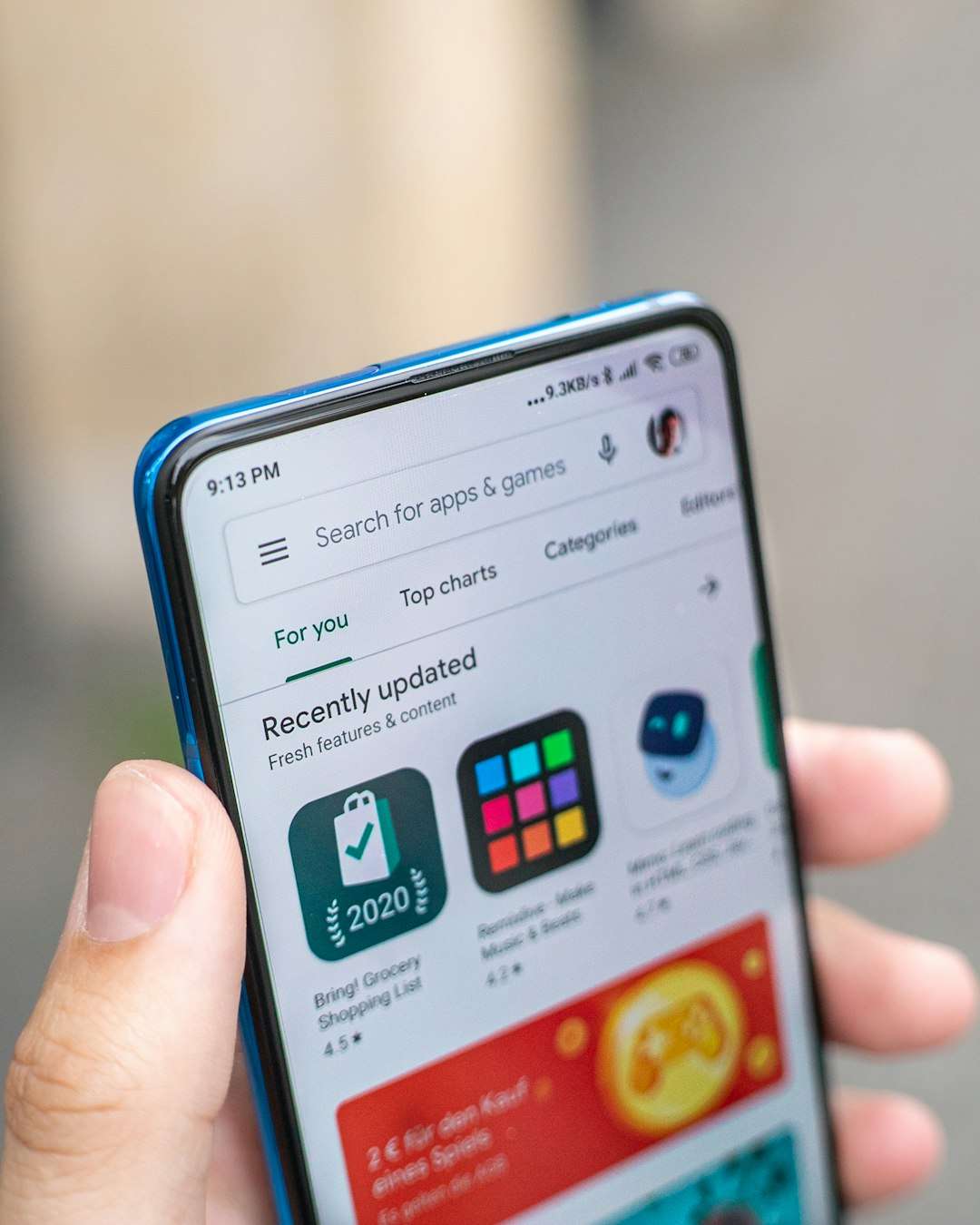
Updating ensures compatibility with the latest security protocols and authentication systems.
Step 3: Update Google Play Services
Google Play Services acts as the bridge between your Google account and third-party apps like Grindr. If it’s outdated, authorization may fail.
To check for updates:
- Go to Settings on your phone.
- Select Apps or Applications.
- Find and tap Google Play Services.
- Scroll down and look for update options (or update through Play Store).
If an update is available, install it and reboot your device.
Step 4: Clear Grindr Cache and Data
Cached data helps apps load faster, but sometimes it becomes corrupted and interferes with login processes.
Here’s how to clear it:
- Go to Settings.
- Tap Apps.
- Select Grindr.
- Tap Storage.
- Choose Clear Cache.
If the issue persists, you can also tap Clear Data (note: this logs you out of the app).
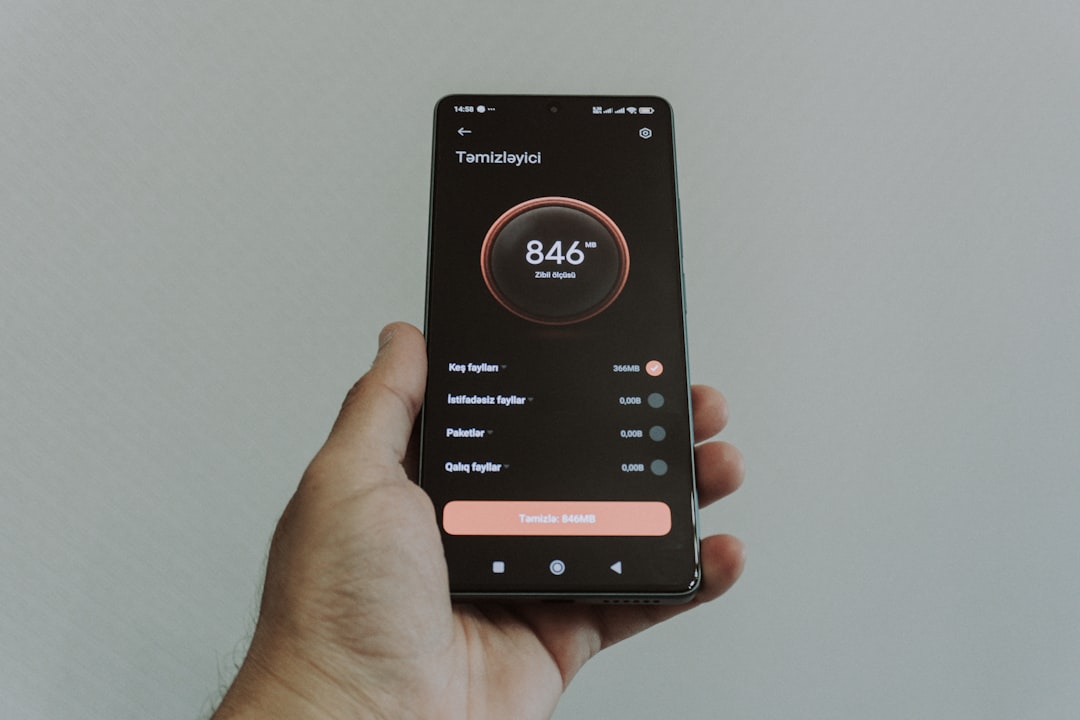
After clearing, reopen Grindr and try signing in again.
Step 5: Remove and Re-Add Your Google Account
Sometimes the problem lies within your Google account sync settings.
To reset your account connection:
- Open Settings.
- Tap Accounts or Passwords and Accounts.
- Select your Google account.
- Tap Remove Account.
Restart your phone, then:
- Return to Accounts.
- Tap Add Account.
- Select Google and sign back in.
This refreshes authentication tokens and often resolves authorization conflicts.
Step 6: Check Google Account Permissions
Google allows you to manage which apps have access to your account. If Grindr’s permissions were revoked, login will fail.
To verify:
- Go to your Google Account settings (via browser).
- Select Security.
- Scroll to Third-party apps with account access.
- Check whether Grindr is listed.
If it’s missing or marked inactive:
- Remove any existing Grindr entry.
- Try logging into Grindr again to reauthorize access.
This forces Google to generate fresh authorization credentials.
Step 7: Disable VPN or Firewall Apps
VPNs and privacy-based firewall apps can interfere with Google authentication servers.
If you use:
- A VPN
- An ad blocker with firewall features
- A custom DNS app
Temporarily disable them and attempt to log in again.
If login works after disabling your VPN, try switching to a different server location or excluding Grindr from VPN routing.
Step 8: Reinstall Grindr
If none of the above steps work, a clean reinstall is your best bet.
Follow these steps:
- Press and hold the Grindr app icon.
- Tap Uninstall.
- Restart your phone.
- Reinstall Grindr from the Google Play Store.
This removes corrupted files and ensures you’re starting fresh.
Step 9: Check Date and Time Settings
This is an often-missed solution. If your phone’s date and time are incorrect, Google authentication can fail due to security certificate validation errors.
To fix:
- Go to Settings.
- Tap Date & Time.
- Enable Automatic date and time.
Once synced correctly, retry the login process.
Step 10: Check for Android System Updates
An outdated Android operating system can create compatibility problems with newer security protocols.
To check for updates:
- Go to Settings.
- Tap System.
- Select Software Update.
Install any pending updates and restart your device.
When to Contact Support
If you’ve tried all the steps above and still see the error message, it may be due to:
- A temporary server outage
- An account-specific restriction
- A regional authentication issue
In that case:
- Visit Grindr’s support center.
- Provide screenshots of the error.
- Specify your Android version and app version.
The more detail you provide, the faster the issue can be escalated.
How to Prevent the Error in the Future
Once you’re back in your account, take a few preventive measures to avoid repeats.
- Keep apps updated regularly.
- Avoid aggressive task killer apps that interfere with background services.
- Limit unnecessary VPN switching.
- Keep your Google account secure and synced.
Authentication systems rely heavily on secure tokens and device verification. Keeping your system stable and updated reduces the risk of failure.
Final Thoughts
The “Google Authorization Failed” error on Grindr might look serious, but in most cases, it’s caused by something minor like outdated software or corrupted cache data. By following the step-by-step solutions in this guide—starting with simple fixes like checking your connection and updating apps—you can usually resolve the issue in just a few minutes.
Technology hiccups happen, especially when third-party platforms like Google are involved. But with the right troubleshooting approach, you’ll be back to browsing profiles, chatting, and connecting without stress.
If all else fails, remember: reinstalling the app and refreshing your Google account connection solves the vast majority of authorization errors.
Stay updated, stay secure, and happy connecting.