
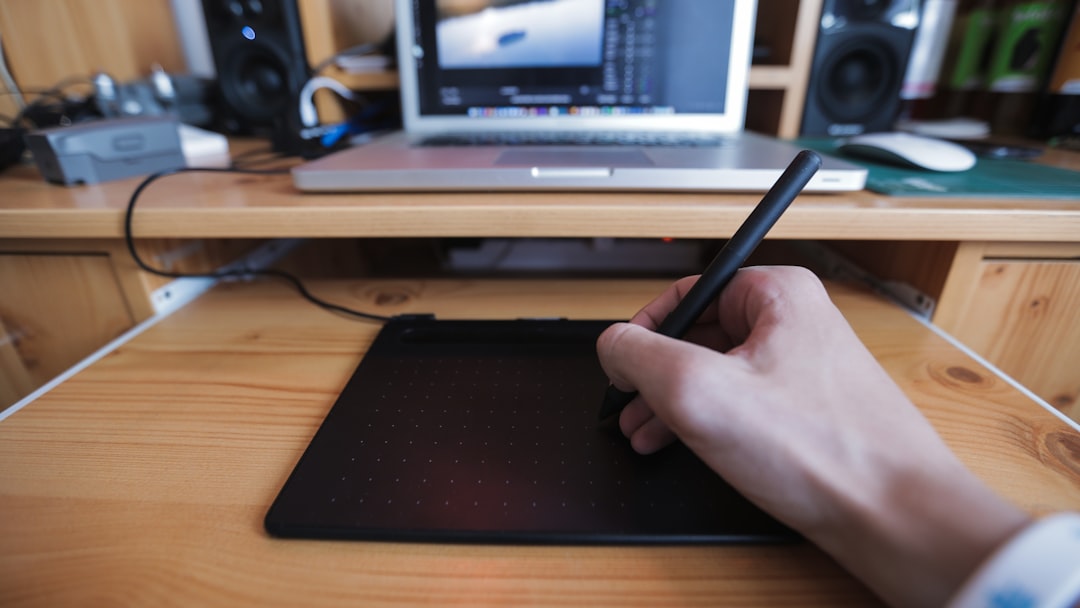
Many digital artists, designers, and students rely on the Wacom Intuos S for smooth and precise pen input. However, when the tablet suddenly stops working on Windows 11, it can interrupt productivity and cause major frustration. From driver conflicts to Windows updates and USB connection errors, several issues may prevent the device from functioning properly. Fortunately, most of these problems can be resolved with systematic troubleshooting and a few configuration changes.
TL;DR: If the Wacom Intuos S is not working on Windows 11, the issue is often related to outdated drivers, Windows updates, USB connection problems, or disabled services. Reinstalling the Wacom driver, restarting Wacom services, checking Windows Ink settings, and changing USB ports typically solve the problem. In more complex cases, performing a clean driver installation or adjusting privacy settings can restore full functionality. Most users can fix the issue within 15–30 minutes.
Contents of Post
Common Reasons Why Wacom Intuos S Stops Working on Windows 11
Before diving into solutions, it is helpful to understand the typical causes behind tablet malfunction. Windows 11 introduced security and driver handling changes that can sometimes interfere with external hardware like drawing tablets.
- Outdated or corrupted Wacom drivers
- Windows 11 updates conflicting with tablet software
- USB connectivity issues
- Disabled Wacom services
- Incorrect pen or Windows Ink settings
- Privacy settings blocking device access
Identifying the root issue allows users to apply the correct fix rather than trying random solutions.
1. Check the Physical Connection First
Although it may seem obvious, connection issues are among the most common causes. A faulty USB cable or port can prevent the tablet from powering on or communicating with Windows.
Steps to verify connection:
- Disconnect the tablet from the current USB port.
- Try a different USB port on the computer.
- Avoid USB hubs and connect directly to the PC.
- Inspect the cable for visible damage.
- Restart the computer with the tablet unplugged, then reconnect it.
If Windows 11 does not detect the device after switching ports, the issue may lie with drivers or system settings.
2. Restart Wacom Services
Windows relies on background services for tablet functionality. If the Wacom Professional Service stops running, the device may appear unresponsive.
To restart Wacom services:
- Press Windows + R to open the Run dialog.
- Type services.msc and press Enter.
- Locate Wacom Professional Service or TabletServiceWacom.
- Right-click and choose Restart.
- Set Startup type to Automatic if it is not already.
After restarting the service, test the pen input again. In many cases, this simple step restores pressure sensitivity and cursor control.
3. Update or Reinstall the Wacom Driver
Driver conflicts are the most frequent reason the Wacom Intuos S stops working on Windows 11. System updates may overwrite or corrupt the installed driver.
Image not found in postmeta
To update the driver:
- Visit the official Wacom support website.
- Select the correct Intuos S model.
- Download the latest Windows 11 compatible driver.
- Install and restart the computer.
If updating does not work, performing a clean installation is recommended.
Clean installation steps:
- Open Apps & Features in Windows Settings.
- Uninstall the existing Wacom Tablet software.
- Restart the PC.
- Open Device Manager and confirm no Wacom devices remain.
- Install the freshly downloaded driver.
- Restart again after installation.
This process removes corrupted files and registry remnants that could block proper operation.
4. Check Windows Ink and Pen Settings
Windows Ink plays a significant role in how pen input behaves. Incorrect settings can make the tablet appear unresponsive or disable pressure sensitivity.
To verify settings:
- Go to Settings > Bluetooth & Devices > Pen & Windows Ink.
- Ensure pen input is enabled.
- Disable “Let me use my pen as a mouse” temporarily to test behavior.
- Open Wacom Tablet Properties and confirm Windows Ink is enabled or disabled according to the app requirements.
Some creative applications, like Photoshop, may require Windows Ink to be turned off for proper pressure sensitivity.
5. Adjust Privacy and Security Settings
Windows 11 includes stricter privacy controls that can prevent devices from accessing system resources.
Check these settings:
- Navigate to Settings > Privacy & Security.
- Select Input Monitoring or similar options.
- Ensure tablet-related permissions are enabled.
- Review Bluetooth & Devices permissions.
Antivirus software can also interfere with Wacom drivers. Temporarily disabling third-party antivirus during installation may resolve conflicts.
6. Disable Windows Updates from Replacing Drivers
Sometimes Windows Update automatically replaces Wacom drivers with generic versions. This can remove advanced functionality like pressure sensitivity.
To prevent this:
- Open System > About > Advanced System Settings.
- Select the Hardware tab.
- Click Device Installation Settings.
- Select No (your device might not work as expected).
This ensures Windows does not override the official Wacom drivers during updates.
7. Test in a Different Application
Sometimes the issue lies within a specific program rather than the tablet itself. Testing the pen in multiple applications can confirm this.
Try testing in:
- Microsoft OneNote
- Paint
- Adobe Photoshop
- Krita
If the pen works in some applications but not others, resetting the affected software’s pen settings may fix the issue.
8. Check for Windows 11 Updates
Ironically, while Windows updates can cause issues, they can also resolve compatibility problems.
To check for updates:
- Open Settings > Windows Update.
- Click Check for Updates.
- Install any pending system patches.
- Restart the computer.
Microsoft regularly releases fixes for hardware compatibility bugs affecting peripherals.
9. Reset the Tablet Preferences
Corrupted preference files may cause erratic behavior. Resetting preferences can return the tablet to default functionality.
Steps:
- Open Wacom Tablet Utility.
- Select Remove under User Preferences.
- Restart the system.
After resetting, users may need to reconfigure express keys and pen settings.
10. Advanced Troubleshooting: Device Manager Inspection
Image not found in postmeta
If the problem persists, examining Device Manager may reveal hardware conflicts.
Steps:
- Right-click the Start button and choose Device Manager.
- Expand Human Interface Devices.
- Locate any Wacom-related entries.
- Right-click and select Update driver.
- If needed, uninstall the device and restart the PC.
A yellow warning icon indicates a driver problem that usually requires reinstallation.
When to Contact Support
If none of the solutions resolve the issue, the tablet may have a hardware defect. Testing the Wacom Intuos S on another computer can determine whether the problem is system-specific.
Users should consider contacting Wacom support if:
- The tablet does not power on at all.
- The device is not recognized on multiple computers.
- The pen does not respond after driver reinstallation.
- The USB cable is confirmed working but the device remains inactive.
Providing error messages, screenshots, and driver version numbers helps expedite technical support responses.
Preventing Future Issues
To reduce the likelihood of future problems:
- Keep drivers updated but avoid beta releases.
- Create a restore point before major Windows updates.
- Use original Wacom cables.
- Regularly back up tablet preferences.
- Avoid sudden unplugging during active sessions.
Proactive system maintenance helps ensure uninterrupted creative workflows.
Frequently Asked Questions (FAQ)
Why is my Wacom Intuos S connected but not responding?
This usually indicates a driver or service issue. Restarting Wacom services or performing a clean driver installation resolves the problem in most cases.
Does Wacom Intuos S work with Windows 11?
Yes, the device is compatible with Windows 11. However, it requires the latest official driver to function properly.
How do I restore pressure sensitivity on Windows 11?
Ensure the correct Wacom driver is installed, verify Windows Ink settings, and check that the creative application supports pressure input.
Why did my tablet stop working after a Windows update?
Windows may replace custom drivers with generic versions during updates. Reinstalling the official Wacom driver typically fixes the issue.
Should I disable Windows Ink?
It depends on the application. Some programs function better with Windows Ink enabled, while others require it to be disabled.
Can a USB hub cause tablet issues?
Yes. USB hubs sometimes provide inconsistent power or connectivity. Connecting the tablet directly to the PC is recommended.
Is reinstalling Windows necessary?
Reinstalling Windows is rarely required. Most Wacom-related issues can be resolved with driver reinstallation and service adjustments.
By following these structured troubleshooting steps, most Wacom Intuos S issues on Windows 11 can be resolved quickly. With proper maintenance and driver management, users can restore smooth pen performance and continue their creative projects without long-term interruptions.