

Fortnite is one of the most popular online multiplayer games in the world, with millions of players competing and collaborating across all platforms. Whether you’re part of a squad or soloing your way to a Victory Royale, your username — also known as your display name or Epic Games ID — is your identity in the gaming world. Sometimes, though, a player might feel the need to freshen up their online persona with a new name. Maybe the old one feels outdated, or perhaps they want to better align it with their social handles. Fortunately, changing your Fortnite name doesn’t require much effort if you’re using an Epic Games account.
Contents of Post
TL;DR
Changing your Fortnite name is straightforward if you’re using an Epic Games account. Visit the Epic Games website, sign in, and edit your display name under Account Settings. Keep in mind you can only change your name once every two weeks. This name will reflect across Fortnite and other Epic-linked games.
Why Change Your Fortnite Name?
There are many reasons a player might want to update their Fortnite name:
- Rebranding – Creating a new identity that better suits your current gaming style or personality.
- Clarity – Making your name easier to read or remember for teammates and followers.
- Privacy – Replacing a real name or previously used alias for increased anonymity.
- Professionalism – Streamlining your name for competitive gaming or streaming purposes.
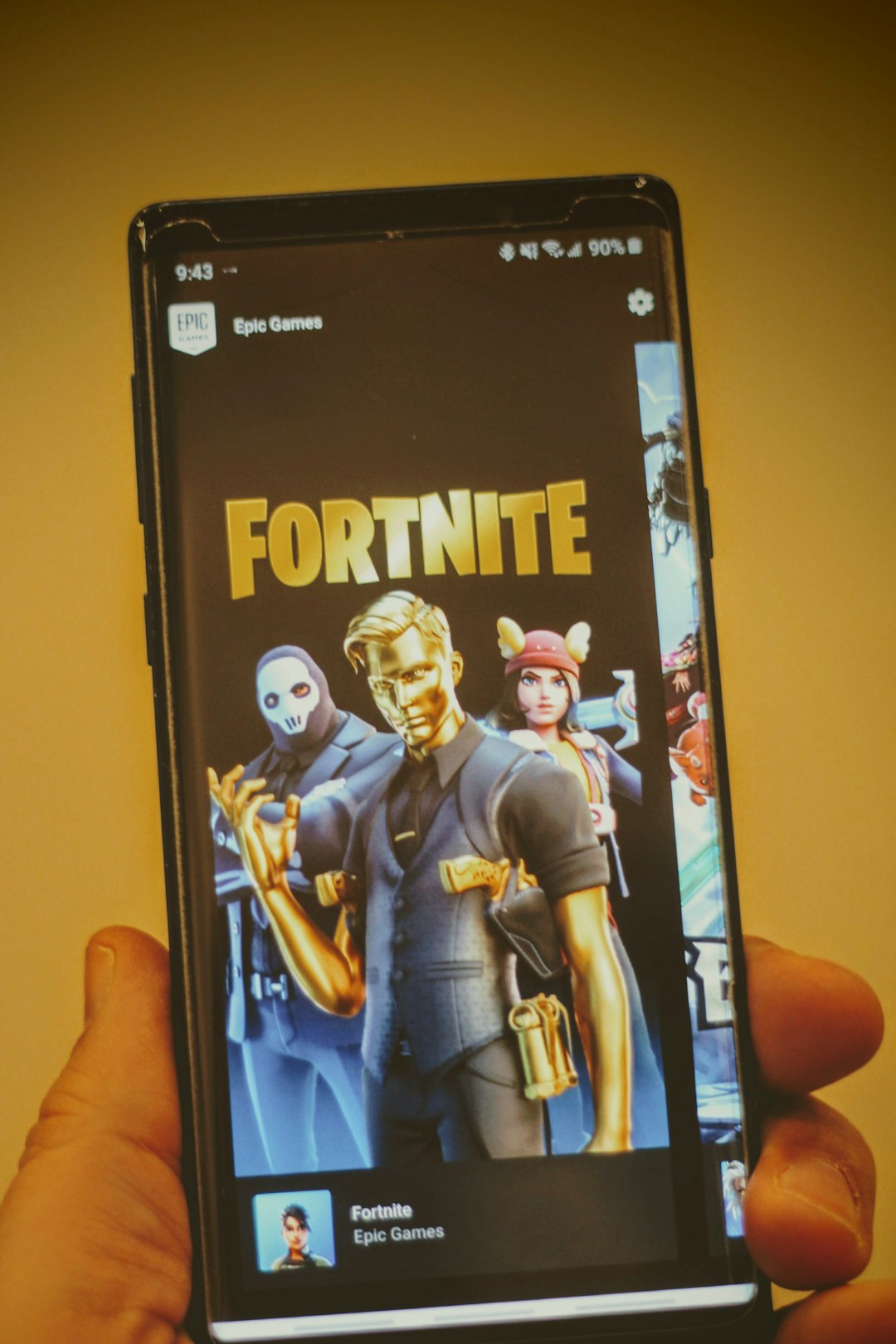
Regardless of the reason, Epic Games makes it fairly simple to change your display name, as long as the rules are followed.
Step-by-Step Guide: How to Change Your Fortnite Name
Below is a clear and concise guide for players who want to change their display name on Fortnite. You must have an Epic Games account, which is the central hub for managing all things related to Fortnite and other Epic titles like Rocket League or Fall Guys.
-
Log in to Your Epic Games Account
Go to www.epicgames.com and click on Sign In at the top right corner. Use your current credentials to log in to your Epic Games account.
-
Access Account Settings
Once you’re logged in, hover over your username in the top right and click Account from the drop-down menu. This will bring you to your account dashboard.
-
Edit Your Display Name
Under the General tab, look for the section labeled Account Info. Locate your Display Name. Next to it, click the pencil icon to edit it.
-
Choose a New Name
Enter your new desired username in the field and confirm it by typing it again in the confirmation box. Make sure the name meets Epic’s naming standards — no inappropriate language, symbols, or impersonation.
-
Save Your Changes
Once entered, click the Confirm button. Your new name will now be effective across Fortnite and any other connected Epic Games services.
Important: You can only change your display name once every two weeks. Choose wisely!
How the Name Change Affects Your Account
Changing your Fortnite name through your Epic Games account will affect your name across all games connected to Epic’s ecosystem. This includes:
- Fortnite (across all platforms)
- Rocket League
- Fall Guys
- Unreal Engine community features
This change does not affect your game progress, stats, or purchased items, so you won’t lose anything. Nonetheless, alert your friends or squad members if you’re changing your name often—they might not recognize you otherwise!
Console Users and Epic Games
If you’re playing on a console (PlayStation, Xbox, or Switch), it’s important to note that your Epic Games display name may differ from your platform username (e.g., PSN ID or Xbox Gamertag).
- If you’re linked to an Epic Games account: Your Fortnite name will be the Epic display name, not your console name.
- If you’re not linked to Epic Games: You’ll need to create and connect your Epic account first before you can change your display name.

To check your linkage, go to Epic Games’ Connections page and make sure your console profile is listed.
Username Requirements and Rules
When creating your new display name, keep the following Epic Games rules in mind:
- Must be between 3-16 characters in length.
- Only alphanumeric characters, dashes, and underscores are allowed — no special symbols.
- Offensive or inappropriate language is strictly prohibited.
- Usernames must not impersonate other players or public figures.
Failure to comply with these rules may result in a forced name change or account action.
Tips for Choosing a Good Fortnite Name
Your Fortnite name represents your gaming identity, so choose something that stands out, is memorable, and reflects how you want to be seen in the community. Here are a few creative tips:
- Keep it Short and Simple: Avoid overly complex or long names that are hard to remember.
- Use Name Generators: Tools like online gamertag generators can help spark ideas.
- Avoid Numbers (If Possible): Unless numbers are part of your brand, names with excessive numbers often appear less professional.
- Check Availability: Make sure your name is unique across platforms if you’re a streamer or content creator.
What to Do if You Can’t Change Your Name
There are a few reasons you might run into trouble when attempting to change your display name:
- Two-Week Restriction: You must wait 14 days between name changes.
- Unlinked Console Account: Your Fortnite account must be linked to an Epic Games account.
- Username Taken: You’ll need to pick a name that isn’t already in use.
- Violating Terms: Your desired name may include banned words or symbols.
If none of these restrictions apply and you still can’t change your name, contact Epic Games Support for assistance.
Frequently Asked Questions
-
Q: How often can I change my Fortnite name?
A: You can change it once every 14 days using your Epic Games Account settings. -
Q: Will changing my name affect my Fortnite progress?
A: No, your stats, purchases, and progress will stay intact. -
Q: Can I change my Fortnite name on a console?
A: Yes, but only if your account is linked to an Epic Games account. You’ll need to change the name via Epic’s website. -
Q: What do I do if the name I want is taken?
A: You’ll need to pick a different name. Try a variation by adding a prefix, suffix, or subtle spelling difference. -
Q: Do other players see my new name instantly?
A: Yes, once the name is changed, it becomes visible to others right away.
Changing your Fortnite name is a simple yet powerful way to reinvent your digital persona. As long as you follow the guidelines and choose carefully, it’s a great opportunity to better reflect your personality or gaming brand.