
ChatGPT includes several ways for a user to share feedback, but the exact location of the feedback option can vary depending on whether the person is using the web version, the mobile app, or a particular workspace or subscription plan. In most cases, feedback is connected directly to an assistant response through small icons such as a thumbs up or thumbs down, while broader product feedback may appear in menus, help options, or reporting tools.
TLDR: The main feedback option in ChatGPT is usually found near an individual response, often as a thumbs up or thumbs down icon. A user can select one of these icons to rate the answer and may sometimes be asked to provide more details. For broader issues, feedback may also be available through the Help, Settings, or Report options, depending on the platform. The location can change slightly between desktop, mobile, and workspace versions.
Contents of Post
Where the Feedback Option Usually Appears
The most common place to find the feedback option in ChatGPT is directly below or near an assistant response. After ChatGPT generates an answer, the interface often displays small action icons. These may include options to copy the response, regenerate or modify it, read it aloud, and rate it. The feedback controls typically appear as thumbs up and thumbs down icons.
When a user selects the thumbs up icon, the action suggests that the response was useful, accurate, or helpful. When a user selects the thumbs down icon, the interface may open a small prompt asking what went wrong. The user may be able to choose from categories such as inaccurate information, unsafe content, unhelpful tone, incomplete answer, or other concerns.
This response-level feedback is the most direct way to tell ChatGPT whether a specific answer was good or bad. It helps distinguish between general product feedback and feedback about one particular response.
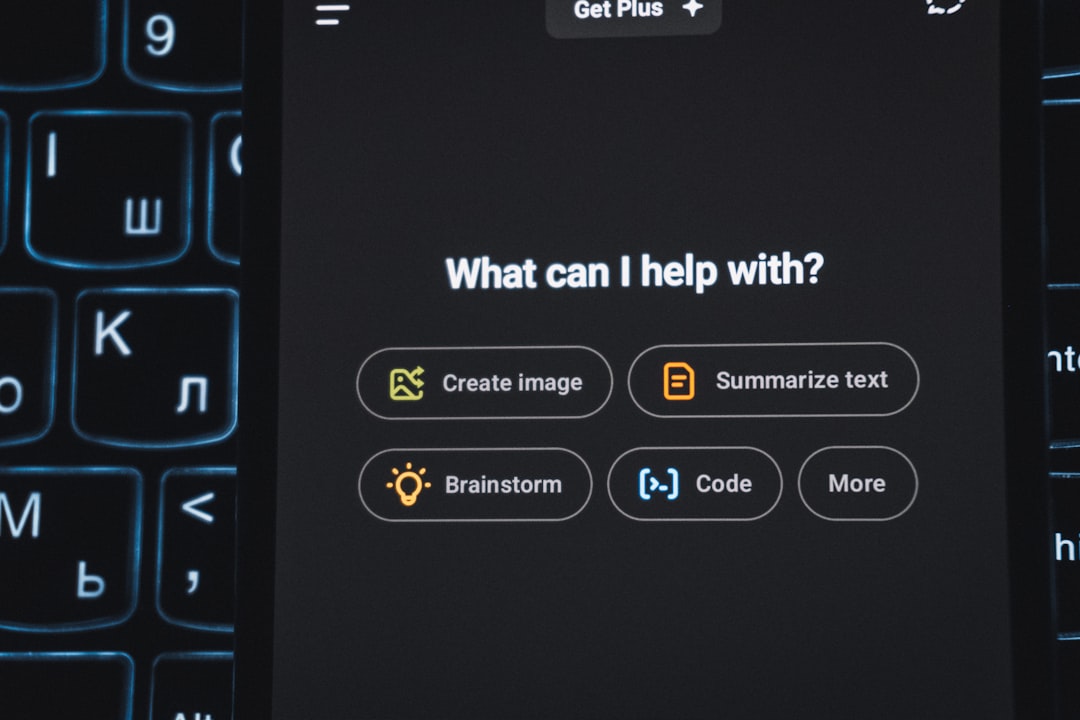
Feedback on the Web Version of ChatGPT
On the desktop or browser version of ChatGPT, feedback is generally available underneath each answer once the response has finished generating. A user looking for the option should check the area immediately below the message. The icons may be subtle, especially if the interface is using a minimal layout.
The feedback process on the web version usually follows a simple pattern:
- Open a conversation or start a new chat.
- Wait for ChatGPT to finish responding.
- Look beneath the response for small action icons.
- Select thumbs up for a helpful response or thumbs down for a poor response.
- If prompted, provide a short explanation or select the most relevant issue.
In some layouts, the feedback icons may only become visible when the cursor hovers over the response. If a user does not immediately see them, moving the pointer near the bottom of the assistant message may reveal additional controls.
Feedback in the ChatGPT Mobile App
In the ChatGPT mobile app, the feedback option may appear slightly differently because of the smaller screen. Rather than showing all icons at once, the app may place feedback controls beneath the message, inside a menu, or behind a long-press action.
A user on mobile may need to tap and hold a response or tap a small options icon near the message. Depending on the version of the app, this menu may include actions such as copy, select text, regenerate, or give feedback. If thumbs up and thumbs down icons are visible, selecting one works much like it does on desktop.
The mobile interface can change after app updates, so a person who cannot find the option should ensure that the app is updated to the latest version. Older versions may display rating controls in a different place or may not show every option available on the web version.
Using the Thumbs Up Option
The thumbs up option is generally used when the response is helpful. It may indicate that ChatGPT understood the prompt, gave correct information, followed instructions, used an appropriate tone, or solved the problem clearly.
Examples of responses that may deserve positive feedback include:
- An answer that directly addresses the question.
- A response that follows formatting instructions correctly.
- A useful explanation that is easy to understand.
- A creative result that matches the requested style.
- A technical answer that is complete and accurate.
Positive feedback can be useful because it signals that a certain kind of response worked well. Even if no written explanation is requested, the rating itself can still provide a helpful signal.
Using the Thumbs Down Option
The thumbs down option is meant for cases where the response is not satisfactory. After selecting it, a user may see a feedback form or checklist. This may give the person an opportunity to explain the problem in more detail.
Common reasons for negative feedback include:
- Incorrect information: The answer contains factual errors or misleading claims.
- Incomplete response: The answer does not fully address the prompt.
- Ignored instructions: The response does not follow the requested format, tone, or constraints.
- Unsafe or inappropriate content: The answer includes content that may be harmful or unsuitable.
- Poor quality: The answer is vague, repetitive, confusing, or not useful.
Detailed feedback is often more useful than a simple negative rating. For example, “the answer gave the wrong date” is more informative than “bad answer.” If a feedback box is available, a short and specific note can help clarify the issue.
Reporting a Problem or Safety Concern
Some feedback is not just about quality. A user may need to report a safety issue, harmful output, policy concern, bug, or abusive content. In those cases, the regular thumbs down button may still be useful, but there may also be a separate Report option depending on the interface.
A report feature may appear near a response, inside a menu, or in a help section. Reporting is especially relevant when the content appears dangerous, hateful, exploitative, privacy-invasive, or otherwise inappropriate. Unlike ordinary feedback, a report is usually intended to flag something that may require closer review.
When submitting a report, the user should avoid including unnecessary sensitive personal information. If the issue involves private data, the explanation should be brief and focused on the problem rather than repeating the sensitive content in detail.
Feedback Through Settings or Help Menus
For product-level comments, the feedback option may be located outside the conversation itself. A user who wants to comment on the ChatGPT interface, billing experience, app performance, login issues, or feature requests may need to look in Settings, Help, or an account menu.
Depending on the version, the user may find options such as:
- Help Center for support articles and issue reporting.
- Settings for account, data, personalization, and app preferences.
- Support chat or a help widget for contacting support.
- Release notes for learning about recent changes.
- Report a bug or similar wording for technical problems.
This type of feedback is different from rating an answer. If a response is wrong, the thumbs down option is usually the best choice. If the application crashes, a button disappears, or a subscription feature does not work, the help or support path may be more appropriate.
Why the Feedback Option May Not Be Visible
There are several reasons why a user may not see a feedback option immediately. The interface can differ by device, browser, app version, account type, region, or experimental rollout. Some features are tested with limited groups before being made widely available.
Other possible reasons include:
- The response is still generating, so the controls have not appeared yet.
- The icons are hidden until the cursor moves over the message.
- The mobile app places the option inside a menu.
- The browser zoom level or window size is hiding part of the interface.
- An extension, script blocker, or browser issue is interfering with the page.
- The account is part of a workspace with customized controls.
If the option is missing, a user can try refreshing the page, updating the app, checking another browser, disabling conflicting extensions, or looking for a menu near the response. In many cases, the feedback controls are present but not immediately obvious.
How to Give Useful Feedback
Good feedback is specific, concise, and focused on what went wrong or right. Since ChatGPT responses can involve many factors, a helpful comment explains the exact issue rather than making a general statement.
Useful feedback may include:
- What the user expected: For example, the response should have been shorter, more formal, or formatted as a table.
- What actually happened: For example, the answer ignored the requested word count.
- Why it matters: For example, the mistake made the instructions unusable.
- Any factual correction: If the model gave a wrong fact, the correct information can be noted.
An example of useful feedback might be: “The answer was helpful overall, but it did not include the requested FAQ section.” Another example might be: “The response cited a feature that does not exist in the current interface.”

Does Feedback Change the Current Answer?
Giving feedback does not usually rewrite the current answer automatically. A thumbs up or thumbs down rating is primarily a signal about response quality. If the user wants a better answer in the same conversation, the most effective approach is to ask ChatGPT to revise, correct, expand, simplify, or reformat the response.
For example, after giving negative feedback, the user may write a follow-up prompt such as: “Please correct the factual errors and provide sources,” or “Rewrite this in a more concise style.” This directly tells ChatGPT what to do next, while the feedback rating separately communicates whether the previous response was helpful.
Privacy Considerations When Giving Feedback
When submitting feedback, a user should be mindful of the information included. Feedback may be reviewed or processed to understand problems, improve systems, or investigate reports, depending on the platform’s policies and settings. Therefore, it is wise to avoid adding passwords, financial data, private identification numbers, medical details, or confidential business information unless absolutely necessary and appropriate.
If a problem involves sensitive content, the user can describe the issue generally. For example, instead of pasting an entire private document into a feedback box, the user might write: “The response revealed information from the uploaded document in a way that was not requested.”
Best Place to Give Each Type of Feedback
Choosing the right feedback path can make the comment more useful. A response rating is best for judging a specific answer, while support channels are better for account or technical issues.
- For a helpful answer: Use the thumbs up icon near the response.
- For an inaccurate answer: Use the thumbs down icon and provide a correction if possible.
- For unsafe content: Use thumbs down or a report option if available.
- For app bugs: Use Help, Support, or Report a bug.
- For billing or login issues: Use official support or account help options.
- For feature suggestions: Use product feedback, help menus, or available community channels if offered.
Conclusion
The option to give feedback on ChatGPT is most often found near each assistant response as a thumbs up or thumbs down icon. On desktop, it is usually below the response; on mobile, it may appear below the message, in a menu, or after a long press. For broader problems, such as bugs, account issues, or product suggestions, the feedback path may be located in Settings, Help, or support menus.
Because the ChatGPT interface can change over time, the best approach is to look first near the response, then check any nearby options menu, and finally review the help or settings area. Clear, specific feedback gives the strongest signal and helps identify whether the issue involves accuracy, formatting, safety, usability, or technical performance.
FAQ
Where is the feedback button in ChatGPT?
The feedback button is usually near an assistant response, often shown as thumbs up and thumbs down icons below the message. In some layouts, the icons may appear only when the cursor hovers over the response.
How does a user give negative feedback on ChatGPT?
A user can select the thumbs down icon near the response. If a feedback form appears, the user can choose a reason or type a short explanation about what was wrong.
How does a user give positive feedback?
A user can select the thumbs up icon under or near a helpful response. This indicates that the answer was useful, accurate, or appropriate.
Why can a user not see the feedback option?
The option may be hidden until the response is complete, placed inside a menu, affected by screen size, or different because of app version, browser, account type, or interface changes.
Is feedback available in the ChatGPT mobile app?
Yes, feedback is generally available in the mobile app, although it may appear in a different location than on desktop. It may be below the response, inside a message menu, or accessible through a tap-and-hold action.
Does giving feedback immediately fix the answer?
No, feedback does not usually change the current answer by itself. To get a revised answer, the user should send a follow-up prompt asking ChatGPT to correct, rewrite, or improve the response.
Where should a user report a bug or account problem?
Bug reports, login issues, billing concerns, and account problems are usually better handled through Help, Settings, or official support options rather than the response rating icons.
What should be included in feedback?
Good feedback should be specific. It may mention what was expected, what went wrong, and any correction that would make the response more accurate or useful.