
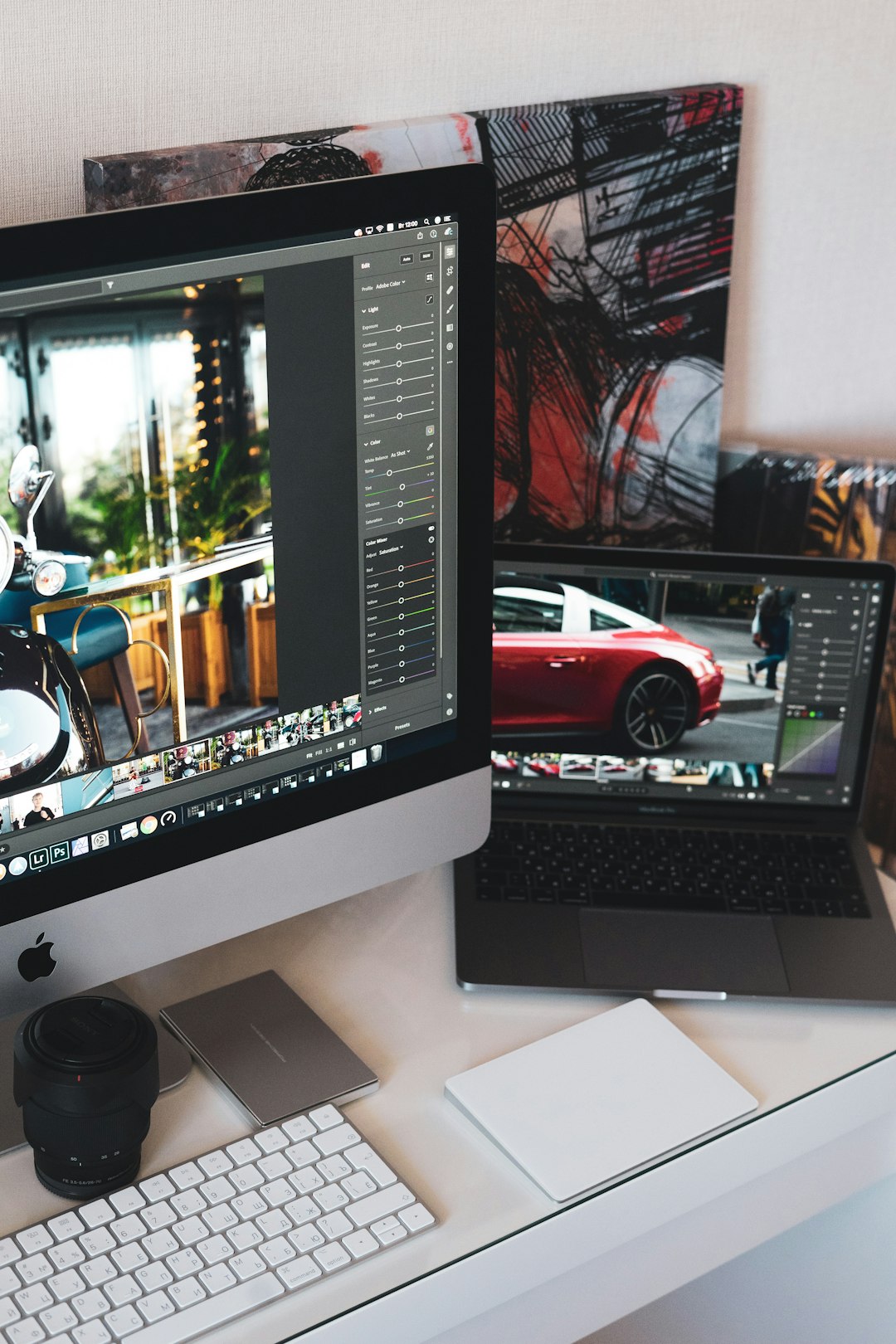
Macs are already polished, stable, and friendly, but the real magic begins when you add the right set of automation and workflow tools. A great Mac toolbox app does more than save a few clicks: it removes repetitive decisions, keeps your workspace organized, and helps you move from idea to finished work with less friction. Whether you write, code, design, manage projects, or simply want your computer to feel faster, the apps below can turn macOS into a personalized productivity system.
TLDR: The best Mac toolbox apps for automation and workflow efficiency include Raycast, Alfred, Keyboard Maestro, Shortcuts, BetterTouchTool, Hazel, TextExpander, Setapp-style utility bundles, and several focused helpers for window management, clipboard history, and file organization. Start with a launcher, a text expansion tool, and a window manager, then add deeper automation once you know which tasks slow you down. The biggest productivity gains come from building small, repeatable workflows rather than trying to automate everything at once.
Contents of Post
What Makes a Great Mac Toolbox App?
A strong automation app should feel like an extension of your thinking. It should be quick to trigger, easy to customize, and reliable enough that you trust it with everyday tasks. The best tools usually share a few traits: they reduce context switching, integrate with other apps, support keyboard-driven workflows, and allow you to create reusable actions.
Think of these apps as layers. At the first layer, you have launchers that help you open apps, search files, run commands, and perform calculations. Next come automation engines that stitch tasks together. Then you have utility apps that improve windows, files, snippets, notifications, and your clipboard. Together, they create a Mac setup that can feel dramatically faster than the default experience.
1. Raycast: The Modern Command Center
Raycast has quickly become one of the most popular Mac productivity tools because it combines a launcher, command palette, clipboard manager, snippet tool, calculator, window manager, and extension platform in one clean interface. Press a keyboard shortcut, type what you need, and act instantly.
Raycast is especially useful for people who live in multiple apps. You can create calendar events, search tasks, control music, manage windows, run scripts, look up documentation, and launch custom workflows without touching the mouse. Its extension store is one of its strongest features, offering integrations for tools such as GitHub, Jira, Notion, Slack, Linear, Google Workspace, and many developer utilities.
Best for: users who want a fast, modern, all-in-one command launcher.
- Great for keyboard users: Nearly everything can be done without lifting your hands.
- Expandable: Install extensions that match your work style.
- Useful built-ins: Clipboard history, snippets, quick links, and window management are included.
2. Alfred: The Classic Power User Launcher
Alfred has been a favorite among Mac power users for years, and for good reason. It is lightweight, fast, deeply customizable, and incredibly flexible when you unlock its Powerpack features. Alfred can launch apps, search the web, find files, run terminal commands, expand snippets, and create complex workflows.
Where Alfred shines is in its workflow builder. You can chain actions together visually, connect scripts, process selected text, and build mini tools that match your exact habits. For example, you might create a workflow that takes highlighted text, formats it, sends it to a note app, and copies a clean version to your clipboard.
Best for: experienced users who enjoy customizing their own productivity system.
- Fast app launching: Open anything in seconds.
- Powerful workflows: Automate repeated sequences with triggers and actions.
- Text snippets: Save time on common phrases, email templates, and code blocks.
3. Keyboard Maestro: The Automation Heavyweight
If you want to automate almost anything on your Mac, Keyboard Maestro is one of the most capable tools available. It can simulate keystrokes, click buttons, move windows, manipulate text, run scripts, open files, control apps, respond to triggers, and build surprisingly advanced workflows without requiring you to be a programmer.
Keyboard Maestro is ideal for repetitive office tasks, creative workflows, development routines, and data entry. You can create macros triggered by hotkeys, typed strings, app launches, time of day, clipboard changes, USB devices, Wi-Fi networks, and more. It feels technical at first, but once you build your first few macros, the possibilities become addictive.
Best for: users who want deep, system-wide automation.
- Automate repetitive actions: Turn multi-step routines into one shortcut.
- Context-aware triggers: Run macros only in certain apps or conditions.
- Excellent for professionals: Writers, developers, editors, accountants, and support teams can all benefit.
4. Apple Shortcuts: Built-In Automation for Everyone
Shortcuts comes built into macOS and is often underestimated. While it may not be as powerful as Keyboard Maestro for interface automation, it is excellent for creating simple workflows that connect Apple apps, system actions, files, URLs, and services.
You can use Shortcuts to resize images, combine PDFs, convert files, start focus modes, generate meeting notes, create reminders, send messages, or run shell scripts. It also syncs with iPhone and iPad, which makes it valuable if you regularly move between devices.
Best for: users who want free, approachable automation built into macOS.
- No extra purchase required: It is included with your Mac.
- Cross-device workflows: Use similar automations on Mac, iPhone, and iPad.
- Good starting point: Learn automation basics before moving to advanced tools.

5. BetterTouchTool: Customize Every Gesture and Input
BetterTouchTool is one of those apps that makes you realize how customizable your Mac can be. It lets you assign actions to trackpad gestures, Magic Mouse gestures, keyboard shortcuts, Touch Bar buttons, mouse buttons, and even window snapping zones.
For example, a three-finger tap could open your task manager, a corner swipe could move a window to another display, and a custom keyboard shortcut could paste formatted text or trigger an AppleScript. BetterTouchTool is especially useful for people who prefer gestures over memorizing dozens of shortcuts.
Best for: users who want to customize gestures, input devices, and window actions.
- Gesture automation: Make the trackpad dramatically more powerful.
- Window snapping: Arrange windows quickly on any screen.
- Flexible triggers: Connect gestures to scripts, shortcuts, and system commands.
6. Hazel: Automatic File Organization
Hazel is a quiet productivity hero. It watches folders and automatically performs actions based on rules you create. If your Downloads folder is always chaotic, Hazel can sort files by type, date, name, source, or content. It can move invoices into finance folders, rename screenshots, archive old documents, clean temporary files, and tag important assets.
The beauty of Hazel is that it works in the background. Once rules are configured, you stop thinking about file cleanup. It is particularly valuable for designers, researchers, students, freelancers, and anyone who downloads or generates many files each day.
Best for: people who want cleaner folders without manual sorting.
- Folder monitoring: Automatically watch selected folders.
- Rule-based actions: Move, rename, tag, archive, or delete files.
- Great for paperwork: Organize receipts, invoices, reports, and PDFs effortlessly.
7. TextExpander: Type Less, Say More
TextExpander saves snippets of text and inserts them when you type short abbreviations. It is simple in concept but extremely powerful in practice. Instead of typing the same email response, address, meeting link, code snippet, or support message repeatedly, you type a short trigger and let TextExpander fill in the rest.
Advanced snippets can include fill-in fields, dates, optional sections, and shared team libraries. This makes it useful not only for individuals, but also for customer support, sales, recruiting, operations, and medical or legal teams where consistency matters.
Best for: anyone who frequently repeats text.
- Save typing time: Expand short abbreviations into full text.
- Improve consistency: Use approved templates and standard phrasing.
- Team friendly: Share snippet libraries across organizations.
8. Rectangle and Magnet: Better Window Management
macOS has improved window management, but many users still prefer dedicated tools. Rectangle and Magnet let you quickly snap windows into halves, thirds, quarters, full screen, or custom positions using keyboard shortcuts or drag zones. These apps are especially helpful on large monitors and multi-display setups.
Rectangle is a popular open-source option, while Magnet offers a polished, affordable experience from the Mac App Store. Either can dramatically reduce the time you spend dragging and resizing windows by hand.
Best for: multitaskers, remote workers, coders, and anyone using large screens.
- Instant layouts: Move windows into organized positions quickly.
- Keyboard shortcuts: Resize without using the mouse.
- Less visual clutter: Keep your desktop structured and readable.
9. Paste, Maccy, and Clipboard Managers
A clipboard manager is one of the simplest upgrades you can make. Instead of losing the previous item every time you copy something new, apps such as Paste and Maccy keep a searchable history of copied text, links, images, and files.
This is invaluable when researching, writing, coding, or collecting information from multiple sources. Maccy is lightweight and straightforward, while Paste offers a more visual interface with collections and syncing options.
Best for: users who copy and paste constantly.
- Retrieve old clips: Never lose something you copied minutes ago.
- Search history: Find text, links, and copied items quickly.
- Boost research workflows: Collect information without juggling temporary notes.

10. CleanShot X: Faster Screenshots and Annotations
CleanShot X is more than a screenshot tool. It lets you capture images, record videos, annotate screenshots, blur sensitive details, create scrolling captures, pin images on screen, and instantly share results. For anyone who documents processes, reports bugs, creates tutorials, or communicates visually, it is a major workflow upgrade.
The ability to pin a screenshot as a floating reference is surprisingly useful. You can keep a design, code snippet, receipt, or instruction visible while working in another app, avoiding constant switching between windows.
Best for: visual communicators, product teams, educators, and support professionals.
How to Build Your Ideal Mac Automation Stack
The best approach is not to install every tool at once. Start with the tasks that annoy you most. Do you constantly search for apps and files? Begin with Raycast or Alfred. Is your desktop a mess? Try Hazel and a window manager. Do you repeat the same writing every day? Add TextExpander. Once the basics are in place, use Keyboard Maestro or Shortcuts to automate longer routines.
A practical starter setup might look like this:
- Launcher: Raycast or Alfred for fast access to apps, actions, and searches.
- Window manager: Rectangle, Magnet, or BetterTouchTool for cleaner layouts.
- Clipboard manager: Paste or Maccy for copy history.
- Text expansion: TextExpander or built-in snippets for repeated phrases.
- File automation: Hazel for automatic organization.
- Deep automation: Keyboard Maestro or Shortcuts for multi-step workflows.
Tips for Getting More Value from Automation Apps
Automation works best when it solves real problems, not imaginary ones. Keep a small note for one week and write down every task you repeat. Look for patterns: renaming files, sending similar emails, resizing images, switching window layouts, opening the same apps every morning, or copying information between systems. These are the best candidates for automation.
Also, name your shortcuts and macros clearly. A messy automation library can become as frustrating as a messy desktop. Use categories, write short descriptions, and review your setup every few months. Remove automations you no longer use and refine the ones that save the most time.
Most importantly, keep automations small. A reliable three-step macro you use daily is better than a fragile twenty-step workflow you abandon after a week. Productivity comes from reducing friction consistently, not from building the most elaborate system possible.
Final Thoughts
The best Mac toolbox apps turn macOS into a workspace that adapts to you. Raycast and Alfred speed up navigation, Keyboard Maestro and Shortcuts automate routines, BetterTouchTool personalizes input, Hazel cleans up files, and tools like TextExpander, Rectangle, Paste, and CleanShot X remove dozens of tiny interruptions from your day.
You do not need to become an automation expert overnight. Choose one app, automate one repetitive task, and build from there. Over time, those small improvements compound into a Mac workflow that feels faster, calmer, and uniquely yours.