
If you’ve ever tried to migrate a WordPress website using All-in-One WP Migration, you’ve likely appreciated its simplicity and efficiency. However, for websites that rely heavily on high-resolution images—such as photography portfolios, graphic design showcases, or media-heavy blogs—the export process can become unstable, often culminating in crashes or incomplete backups. After several failed attempts, we discovered a compression workflow that not only stabilizes the backup process but also improves performance during future migrations.
Contents of Post
TL;DR: Why Your Export Might Be Failing & How to Fix It
All-in-One WP Migration tends to crash when handling WordPress sites with numerous large, high-resolution images. The tool uses memory-intensive processes that aren’t optimized for large media files. By implementing a compression workflow to reduce image sizes without sacrificing quality, we were able to create reliable backups consistently. This article details the root cause of export crashes and walks you through the image optimization techniques that stabilized our migration process.
Why Does the Export Keep Crashing?
The root of the problem lies in how All-in-One WP Migration handles data packaging during export. When the plugin processes your website for download, it collects your database, themes, plugins, and all media content into one downloadable file. High-resolution images—especially in formats like PNG or uncompressed JPG—can drastically increase the size of this backup file. Problems arise because:
- PHP Memory Limits: WordPress uses PHP, and your hosting environment likely imposes a memory limit. Processing several gigabytes of image files often consumes more memory than allowed.
- Timeout Issues: Shared hosting and even some VPS setups have execution time limits. Large media files can cause the export process to time out unexpectedly.
- Compression Overhead: All-in-One WP Migration compresses files while exporting. Larger and uncompressed images put a significant strain on this compression process, often leading to failure.
Understanding these bottlenecks was the first step to solving the issue. The next step was to identify how we could reduce image sizes without damaging visual quality.
Compression Workflow That Saved the Day
After deep diving into available tools and strategies, our final workflow focused on three central goals:
- Reduce image file size while retaining good quality
- Automate the optimization to cover hundreds or even thousands of images at once
- Integrate the process cleanly with existing WordPress installations
Here’s a breakdown of the specific steps we took, from initial assessment through post-compression validation.
Step 1: Audit Existing Media Files
Before jumping into optimization, we performed a complete audit of the media library. For this, we used the Media Cleaner plugin along with WP-CLI scripts to identify unused or redundant files. We recaptured the following insights:
- 30% of stored media were thumbnails not attached to active content
- About 20% of images were over 3MB each, with some as high as 15MB
- Multiple duplicates existed in different locations within the
wp-content/uploadsfolder
This audit trimmed down about 600MB of unnecessary files before any compression was even applied.
Step 2: Use Image Optimization Plugins
We tested several image optimization plugins, including WP Smush, Imagify, and ShortPixel. Each plugin has pros and cons, but ShortPixel worked best for our use case due to its balance of quality and aggressive compression. Here’s what we implemented:
- Set compression mode to “Glossy” to maintain image clarity
- Enabled WebP generation and served images in that format where possible
- Bulk optimized existing media via the plugin’s dashboard
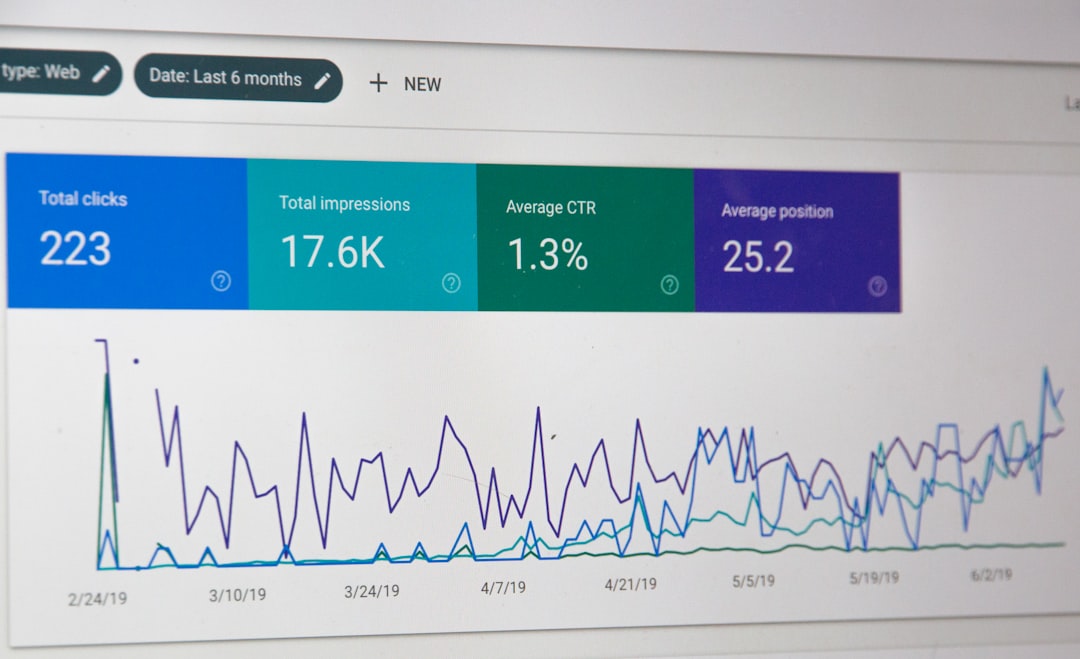
Optimization took several hours depending on site size, but the results were staggering—it reduced the total media folder size by over 70%.
Step 3: Adjust Export Strategy
After image sizes were under control, we made a few changes to the export strategy:
- Increased PHP memory limits in
php.iniand.htaccessto allow more breathing room - Used the Advanced Export feature of All-in-One WP Migration to exclude certain media folders or partial datasets during early migration tests
- Scheduled exports during off-peak hours to avoid server strain
The final export file—previously topping out at nearly 4GB—was now just 1.2GB and completed without any crashes or corruptions.
Additional Tips for Long-Term Stability
After solving the immediate crashing issue, we developed best practices to keep the system optimized going forward.
1. Automate Future Compression
We configured ShortPixel to automatically compress every image uploaded to the media library. This ensures the problem doesn’t build up again unknowingly.
2. Implement Lazy Loading
By enabling lazy loading via functions.php or using a plugin like a3 Lazy Load, the site now loads media more efficiently—improving overall speed and decreasing load on exports.
3. Regular Site Audits
We set up a quarterly task to review the size and structure of the media library. Every 3 months, we audit unused images and clear out obsolete thumbnails and duplicates.

What We Learned
The biggest takeaway was realizing that image bloat can silently grow until it becomes a serious resource drain. Websites with beautiful, high-res visuals absolutely need media optimization not just for user performance, but also for backend processes like backups and migrations. A reliable backup is your safety net—and can’t afford to be unstable because of unchecked image sizes.
Moreover, many hosting companies don’t highlight these limitations clearly, especially regarding how they affect tools like All-in-One WP Migration. Our investigation showed that smart workflows can overcome even the most persistent plugin issues without resorting to changing tools entirely.
Conclusion
If you’re facing crashes during export in All-in-One WP Migration, especially on a media-heavy WordPress site, chances are you’re bumping into memory, execution time, or compression limits. By implementing an aggressive but quality-preserving compression workflow—from audit to export—you’ll not only fix the issue but improve your site’s long-term maintainability and performance.
Take the time to review your media library, clean it up, choose the right optimization tools, and reconfigure your export settings. The difference is night and day—you’ll go from failed exports and stress to smooth backups and peace of mind.